


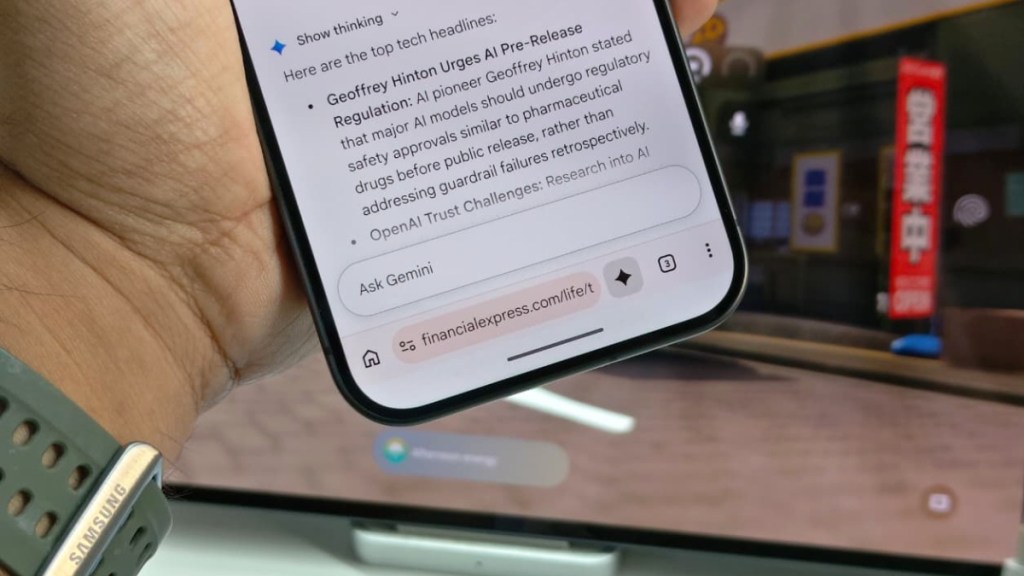

For all those being too lazy to browse the internet and fill out forms, or undertaking a multi-input task, Google has a solution – use Gemini to do it.
In the latest update for Chrome on Android, Google has now added Gemini’s AI assistant directly next to the search bar. The idea with this update is to reduce a relentless series of manual taps, precise zooms, and tedious data entry on websites, letting Gemini take care of the mundane tasks. The Auto Browse via Gemini in Chrome could help with booking a flight, ordering groceries, or completing multi-step online forms.
Instead of just retrieving answers or summarising pages, Gemini in Chrome can now take direct action inside the browser. Powered by advanced web-agent models, the AI reads screen content, fills out complex forms, navigates between site sub-pages, and places items into shopping carts while keeping users in control.
Gemini Auto Browse: What it can do on your Android phone
Gemini in Chrome acts as an agentic AI feature, completing tasks on your behalf.
Multi-step site navigation: You can ask Gemini to buy ingredients for a specific online recipe. The assistant navigates to a supported delivery or e-commerce platform, searches for the exact items, matches quantities, and adds them directly to your cart.
Smart form filling: The activities of filling out registration portals, event applications, or service sign-ups on a small screen are traditionally cumbersome. Gemini scans form fields, interprets required parameters, and accurately populates personal details or contextual answers drawn from connected Google services.
Cross-site comparison and booking: You can task Gemini with securing event parking or finding hotel reservations. It navigates listing pages, checks dates, compares tiers, and selects options based on your personal preferences.
How to use Gemini Auto Browse on Android
Setting up and triggering Gemini’s web navigation on Android requires just a few steps. However, a few conditions need to be met prior to accessing the feature on Android.
Subscription: You need an account opted into either Google AI Pro or Google AI Ultra.
Device and Regional requirements: Ensure your Android device is running the latest version of Google Chrome with the system language set to English (currently rolled out across eligible accounts in supported regions like the US and India).
Account Permissions: Chrome must be set to Standard or Enhanced Safe Browsing, and you must grant Gemini permission to execute auto-browsing tasks.
Step-by-step guide on using Gemini Auto Browse
Launch the Feature: Open Google Chrome on your Android device and tap the Ask Gemini action bar at the bottom or top of the browser screen.
Issue your command: Type or voice-prompt a task requiring multi-step navigation (e.g., “Find a table for two near Central Park for 7 PM tomorrow and fill out my contact details” or “Add all required tools for replacing a bike chain to my store cart”).
Review the Action Plan: Gemini generates a transparent step-by-step blueprint detailing which websites it plans to visit and what information it intends to submit.
Approve and monitor: Tap “Start Task.” Gemini launches a dedicated auto-browse tab marked with an active task indicator. You can watch the AI navigate pages and fill form fields in real time.
Take over for sensitive actions: For payments, password sign-ins, or final order confirmations, Gemini pauses automatically and prompts you to Review or Take Over Task to ensure total security.
Is Gemini Auto Browse safe?
To prevent accidental purchases or improper data exposure, Google built strict guardrails into the agent architecture:
1. Mandatory human-in-the-loop confirmation
Gemini will never execute final payment transactions or confirm critical sensitive forms without explicit user approval. Hence, you will still need to opt in for making online transactions.
2. Full manual override at any instant
Users retain full authority over the browser session, with the ability to tap Pause, Stop, or Take over task at any point during automated execution.
3. Strict data scope protection
Gemini restricts its contextual awareness purely to the tabs required for the user-defined prompt, keeping unrelated open tabs and sensitive browser storage safe.
4. Tiered daily usage allowances
To manage network resources effectively, Google AI Pro accounts support up to 20 multi-step automation tasks daily, while Google AI Ultra tiers expand support up to 200 daily requests.